Add a TikTok destination
Before adding the TikTok destination in Metrion, ensure that you remove or deactivate any existing tags or integrations that send data to the same TikTok Pixel you intend to use. If multiple sources send the same events to the Pixel (e.g., both Shopify's native integration and Metrion), it can result in duplicate event firing, leading to inaccurate or inflated reporting.
Written By Vincent Stoit
Last updated 10 months ago
How to add a TikTok destination
1. Choose TikTok Ads when adding a new destination in your Metrion installation
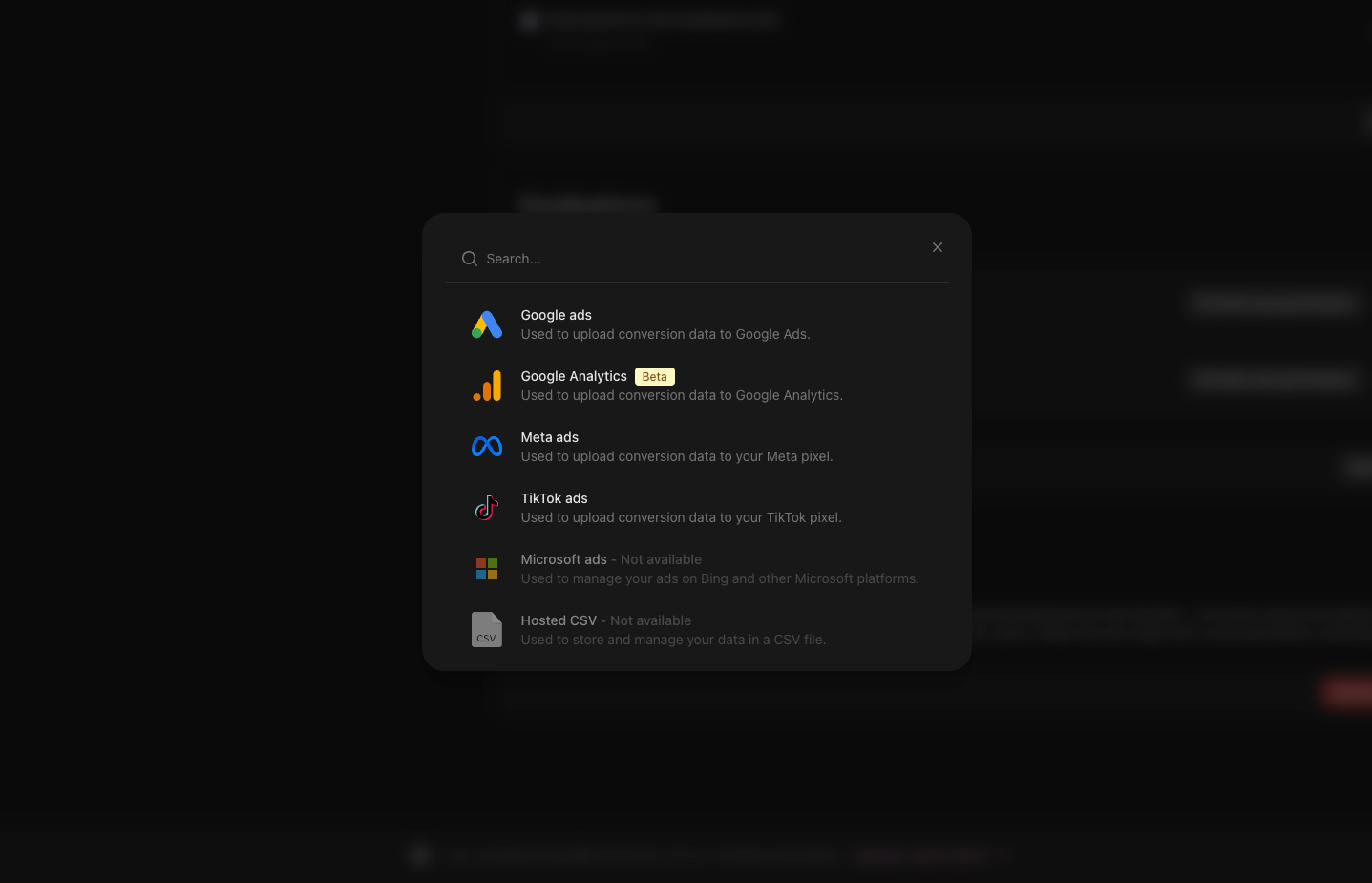
2. Provide the following information:
Pixel name
Choose a name for your pixel. This can match the name you used in TikTok Ads, or you can choose a different one. Please note that this name cannot be changed later."
Pixel ID
Go to business.tiktok.com and select the right account.
Go to Events Manager > Data Sources > Connect data source
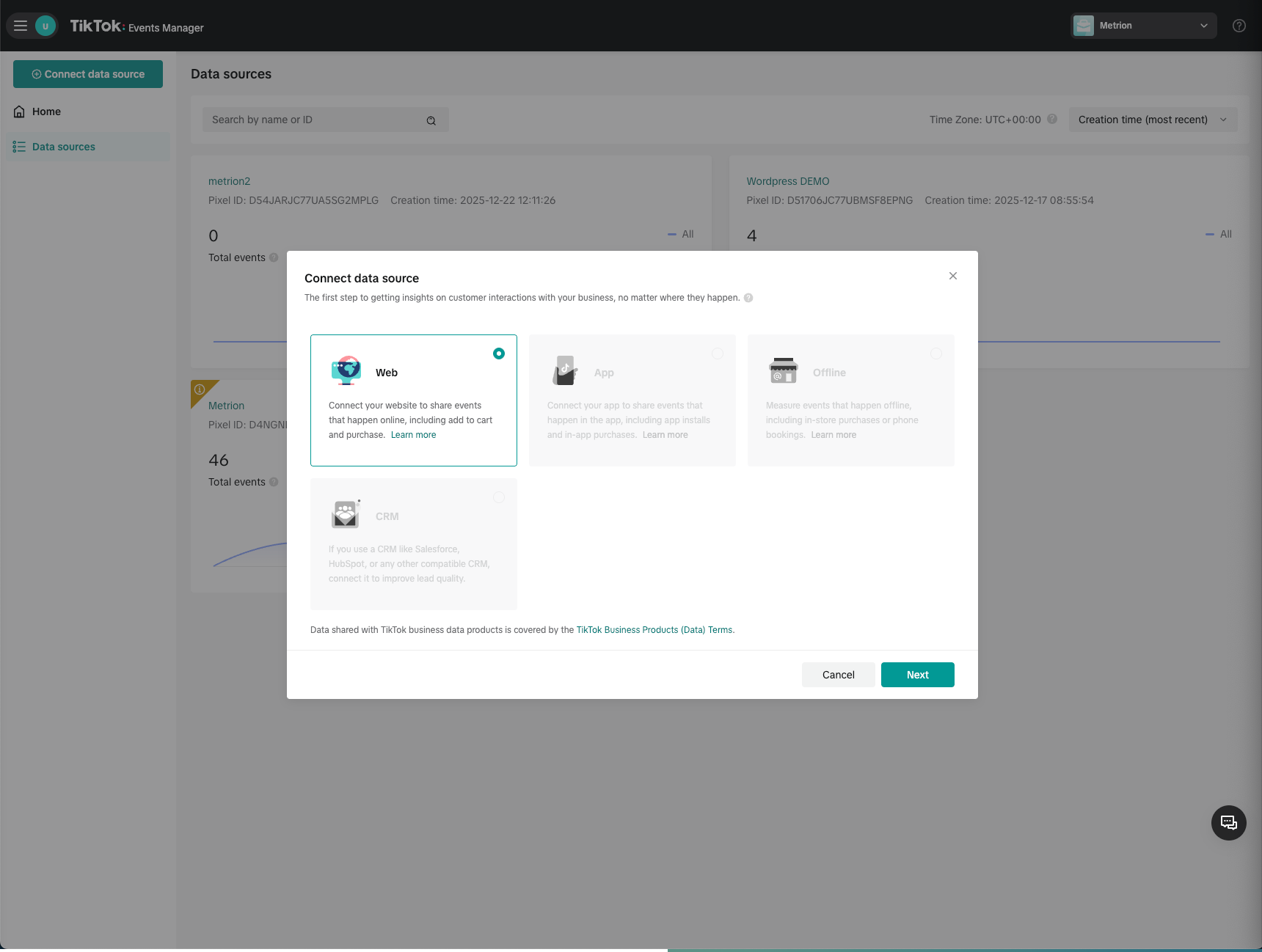
Select Web and click Next
Fill in you website and click Next
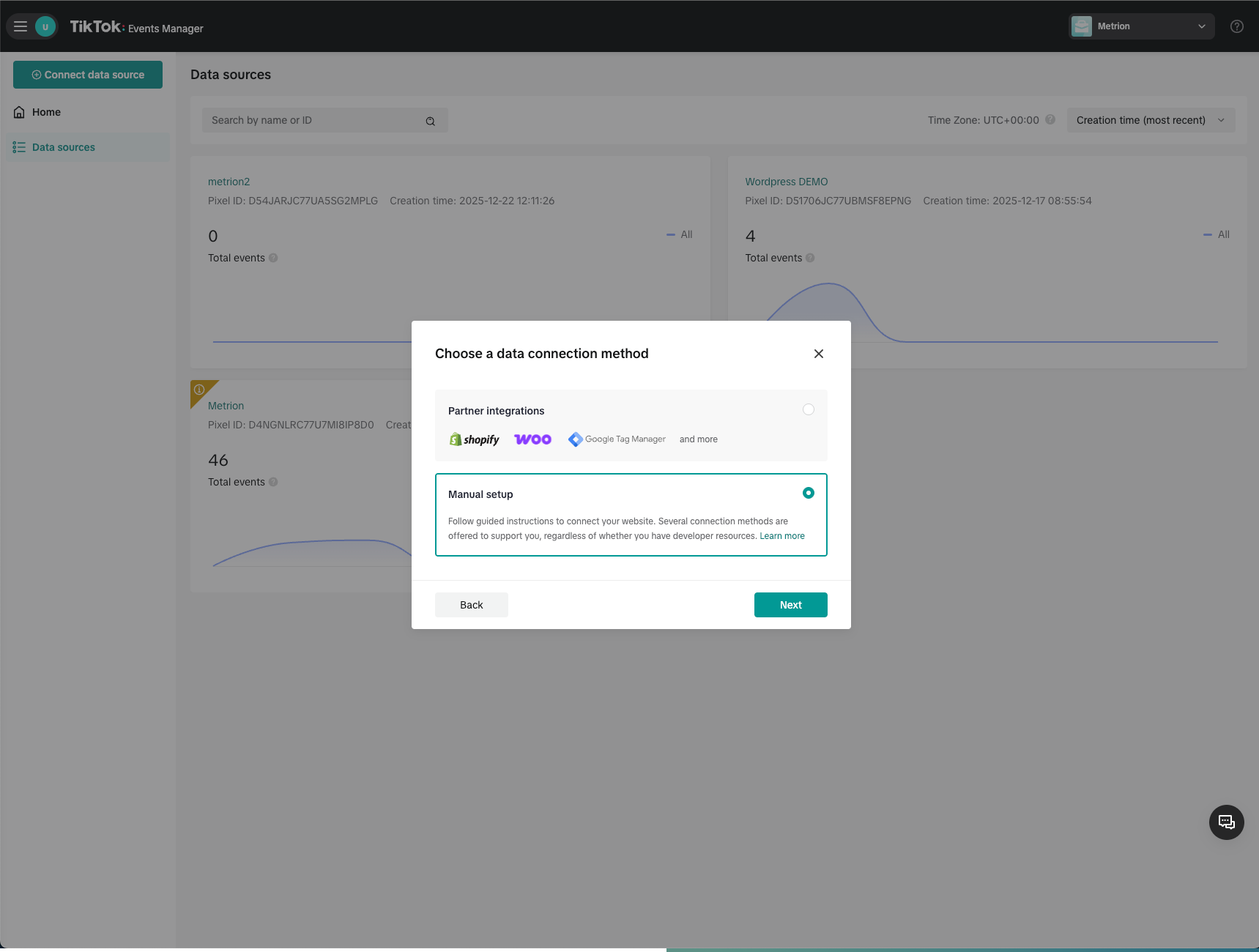
Select manual setup and click Next
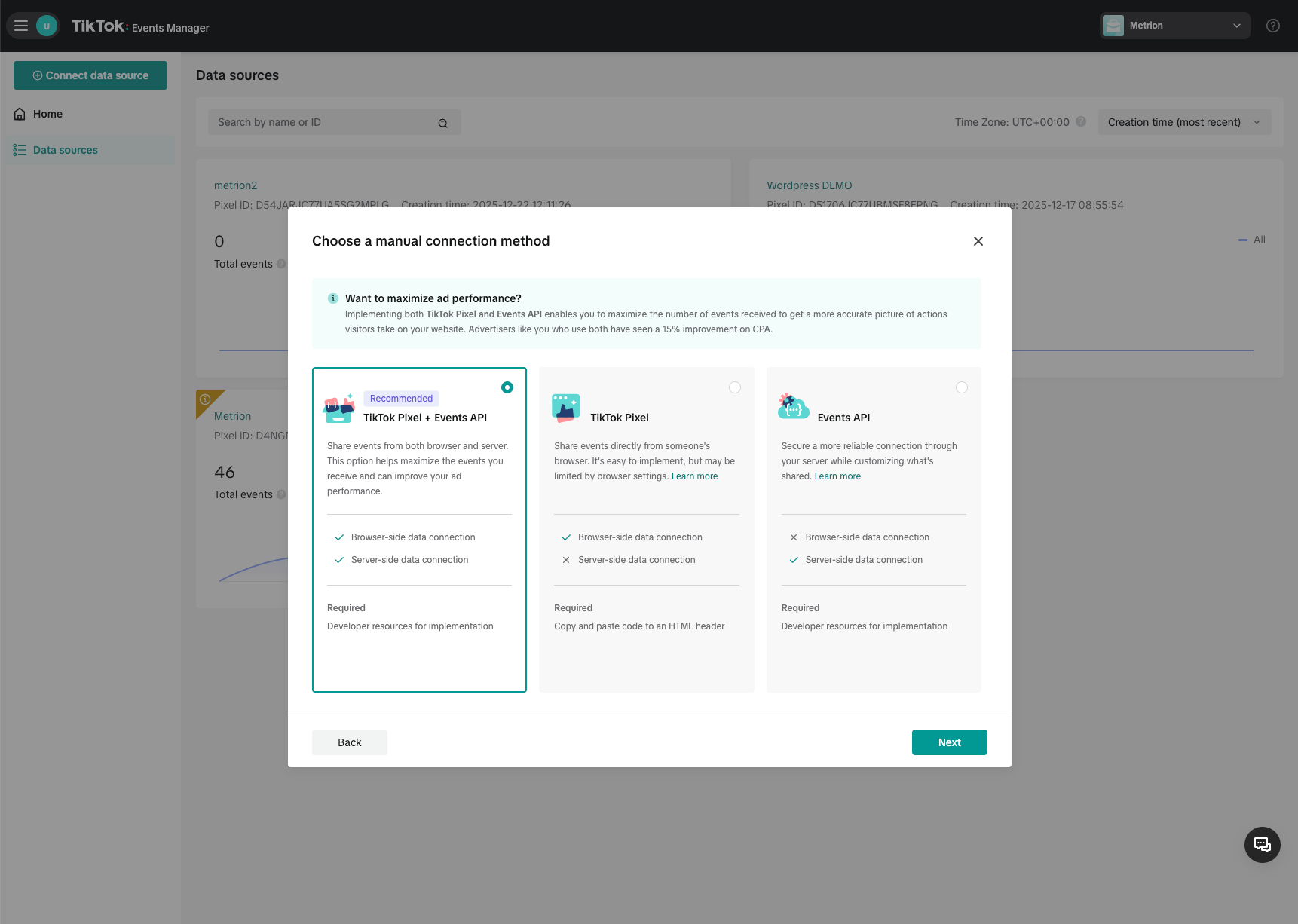
Select TikTok Pixel + Events API and click Next
Give your pixel a name
Skip the install base code step.
Enable Automatic Advanced Matching (AAM)
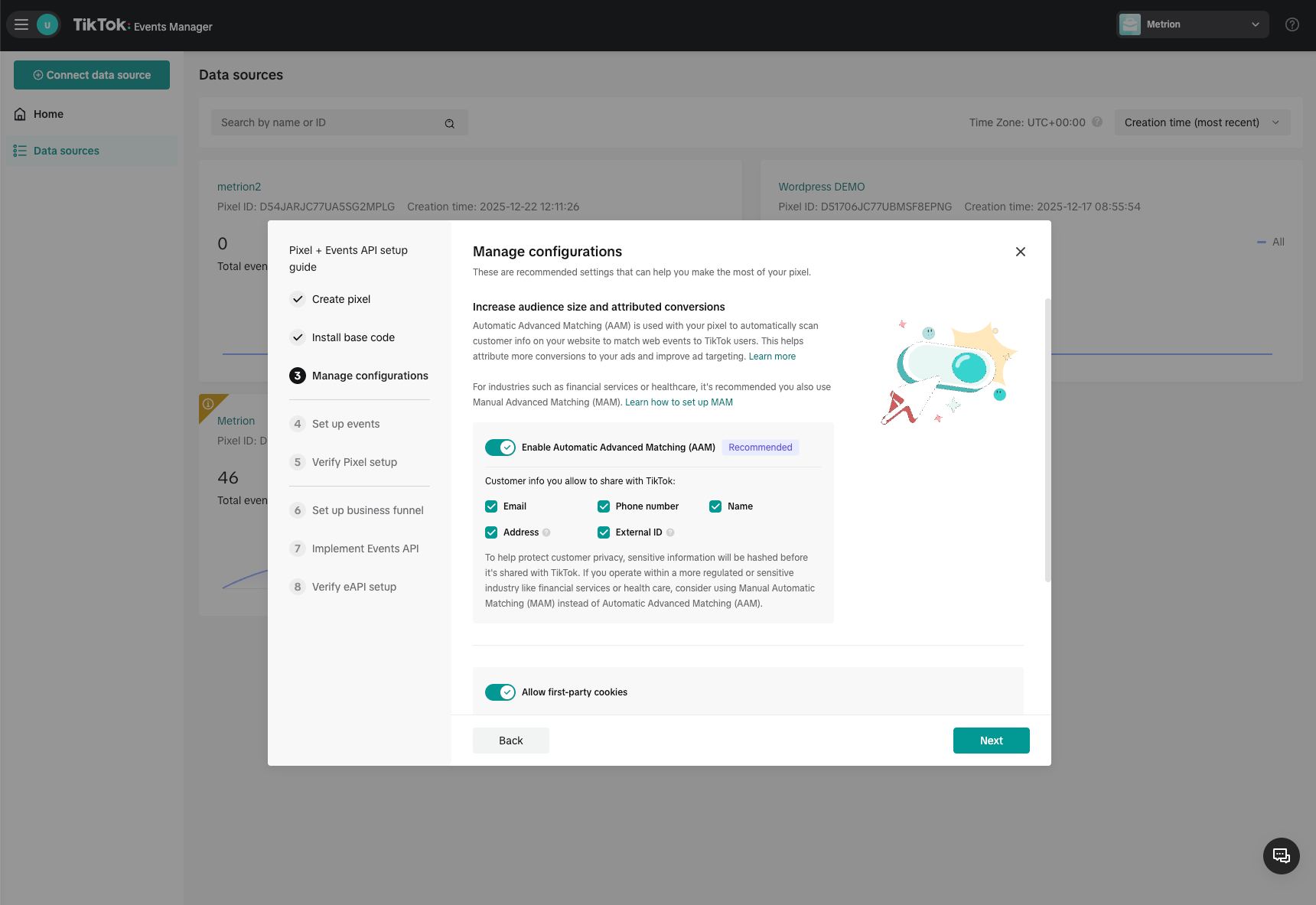
Skip the Set up events step
Skip the Verify Pixel setup
Skip the Set up business funnel
Copy the Pixel ID
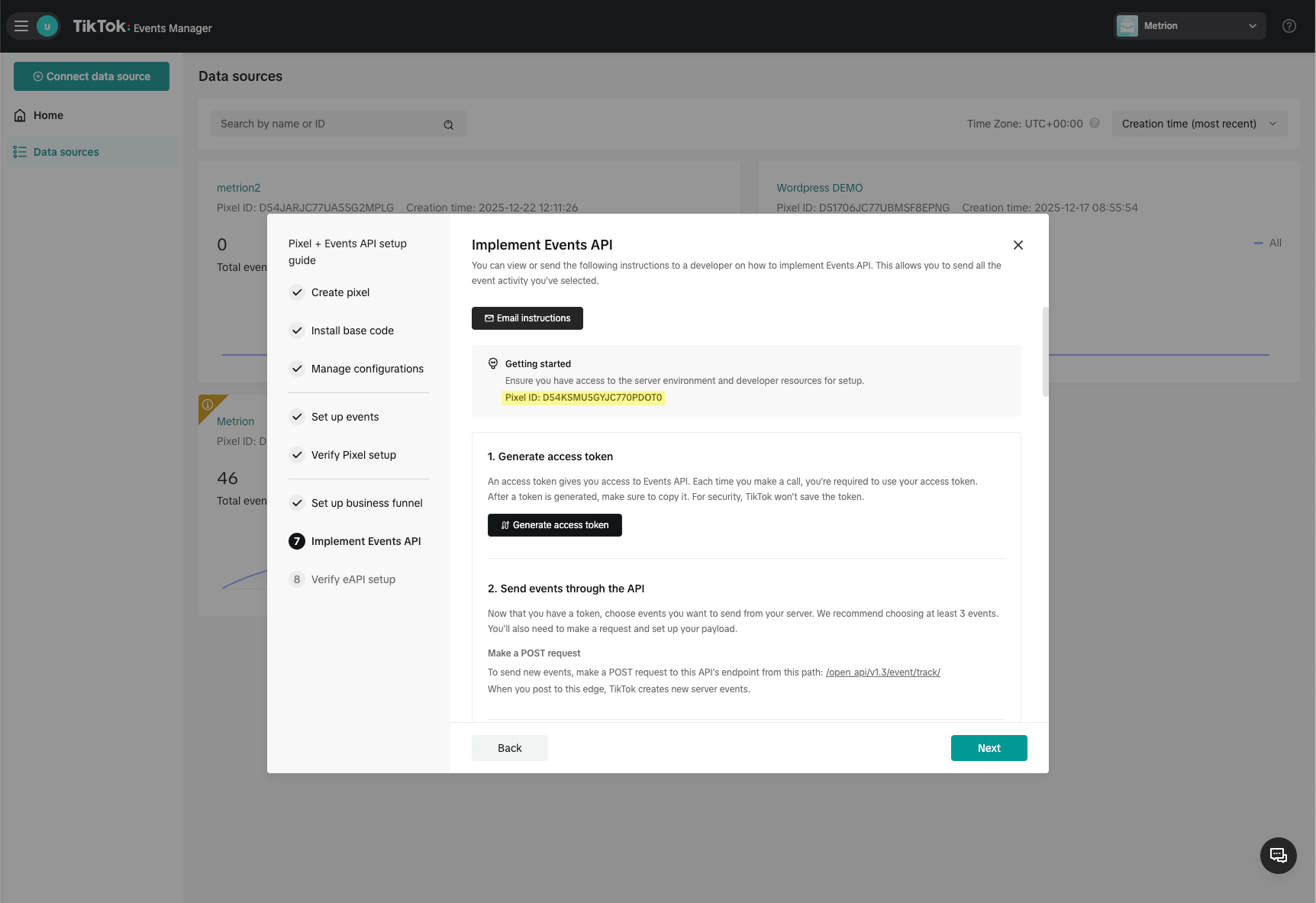
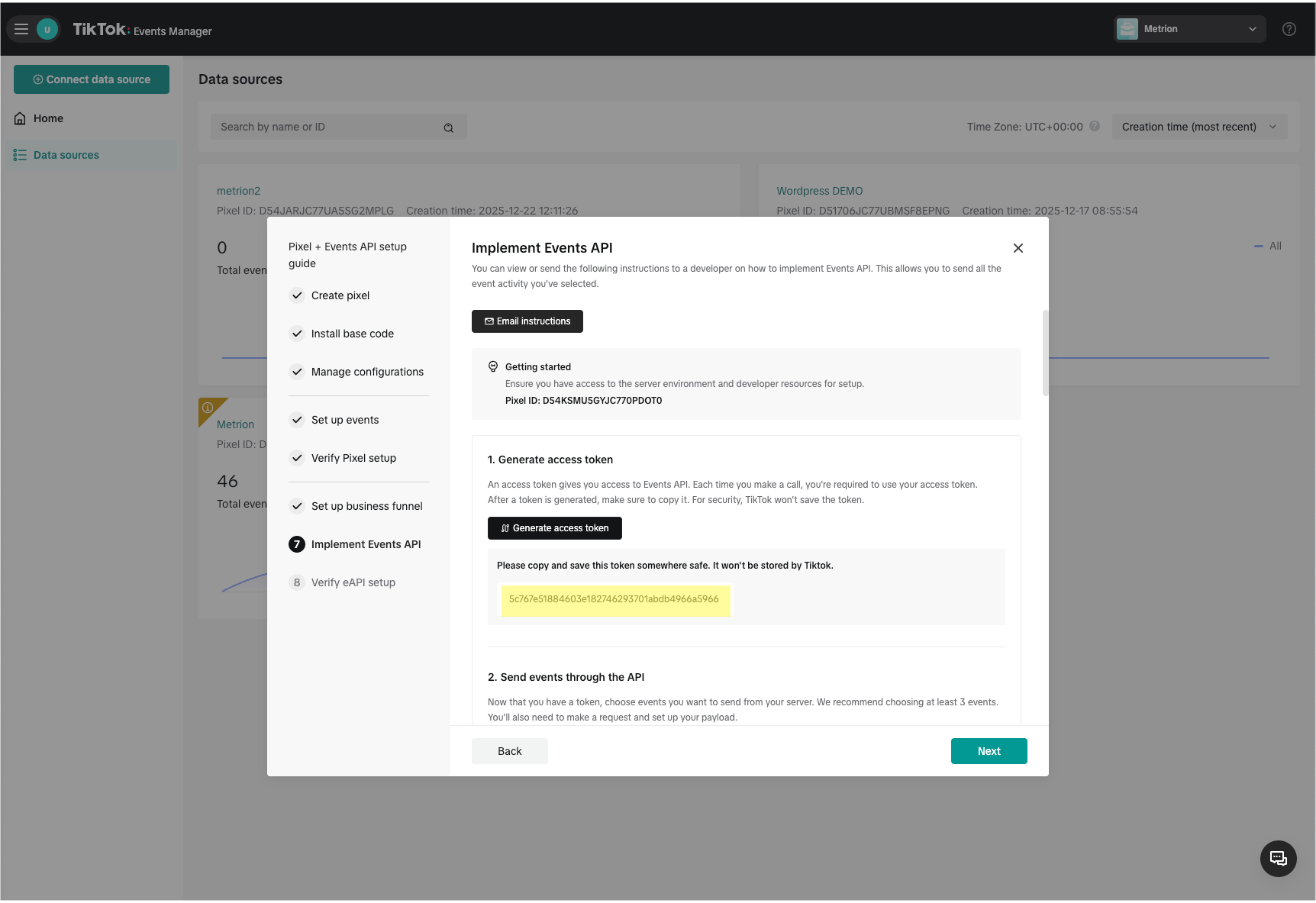
Generate the access token and copy it.
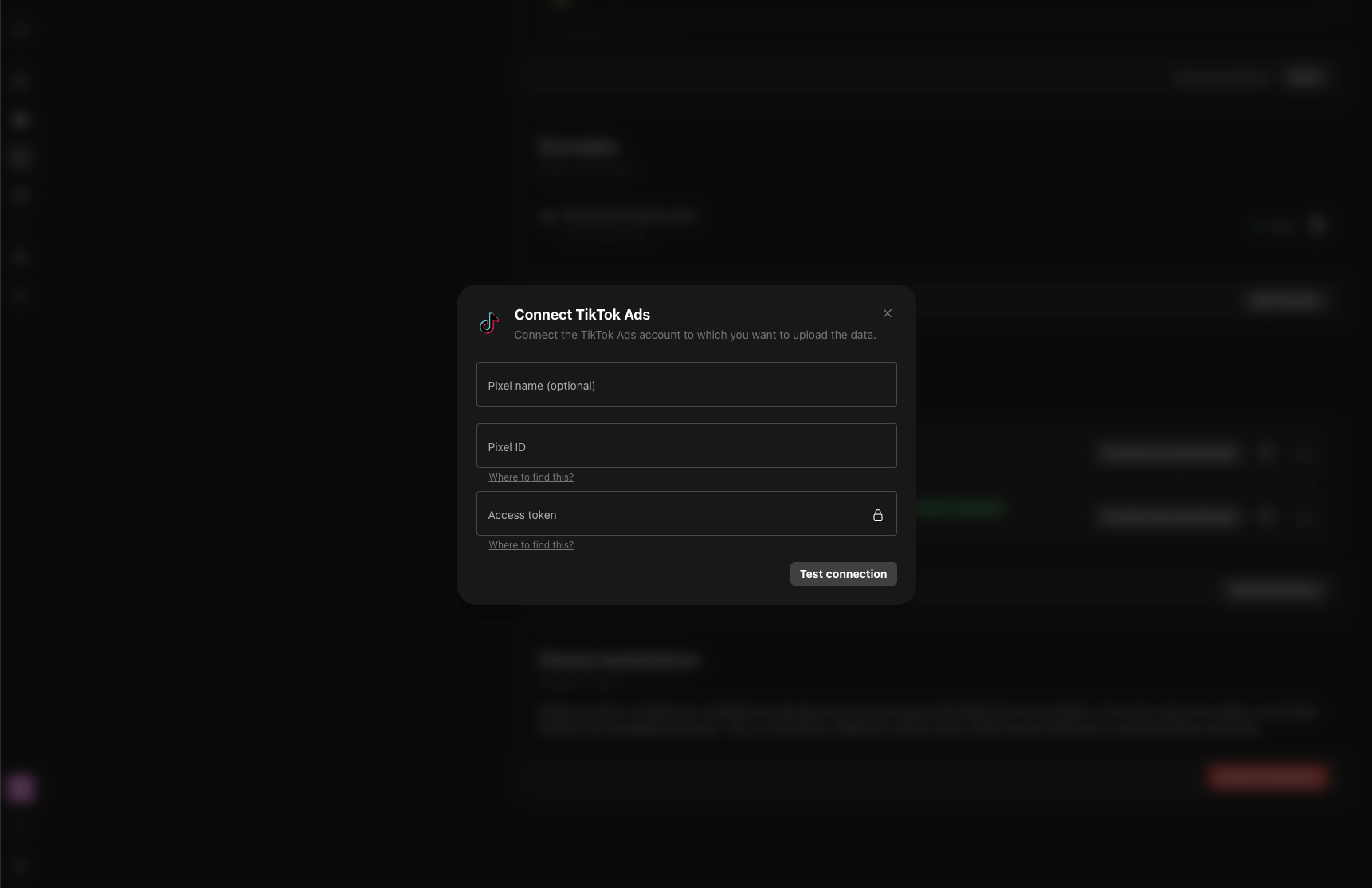
Enter you Pixel id and Access token in Metrion and save your Destination.
Was this helpful?
Still need help? Ask the team