Add a Meta destination
Before adding the Meta destination in Metrion, ensure that you remove or deactivate any existing tags or integrations that send data to the same Meta Pixel you intend to use. If multiple sources send the same events to the Pixel (e.g., both Shopify's native integration and Metrion), it can result in duplicate event firing, leading to inaccurate or inflated reporting. Metrion’s Meta destination includes both the Meta Pixel and Conversions API, which allows Meta to deduplicate events only if both signals are sent from the same source and include the necessary event identifiers (like event_id). However, if multiple platforms send the same event independently, Meta cannot reliably deduplicate them, and this may degrade your ad performance and attribution accuracy.
Written By Vincent Stoit
Last updated 10 months ago
If you'd prefer to keep your existing setup, you can create a separate Meta Pixel specifically for Metrion. This allows you to run Metrion in parallel without interfering with your current configuration. Follow Meta’s official guide to create a new Meta Pixel.
If your shop runs on Shopify and you had the Meta app already installed before Metrion: turn off data sharing for Meta in Shopify. Navigate to your Shopify Admin, go to Sales Channels, and select Facebook & Instagram, navigate to Settings and scroll down to Share Data, then click Change, and toggle the setting to Data Sharing Off.
How to add a Meta destination
1. Choose Meta Ads when adding a new destination in your Metrion installation
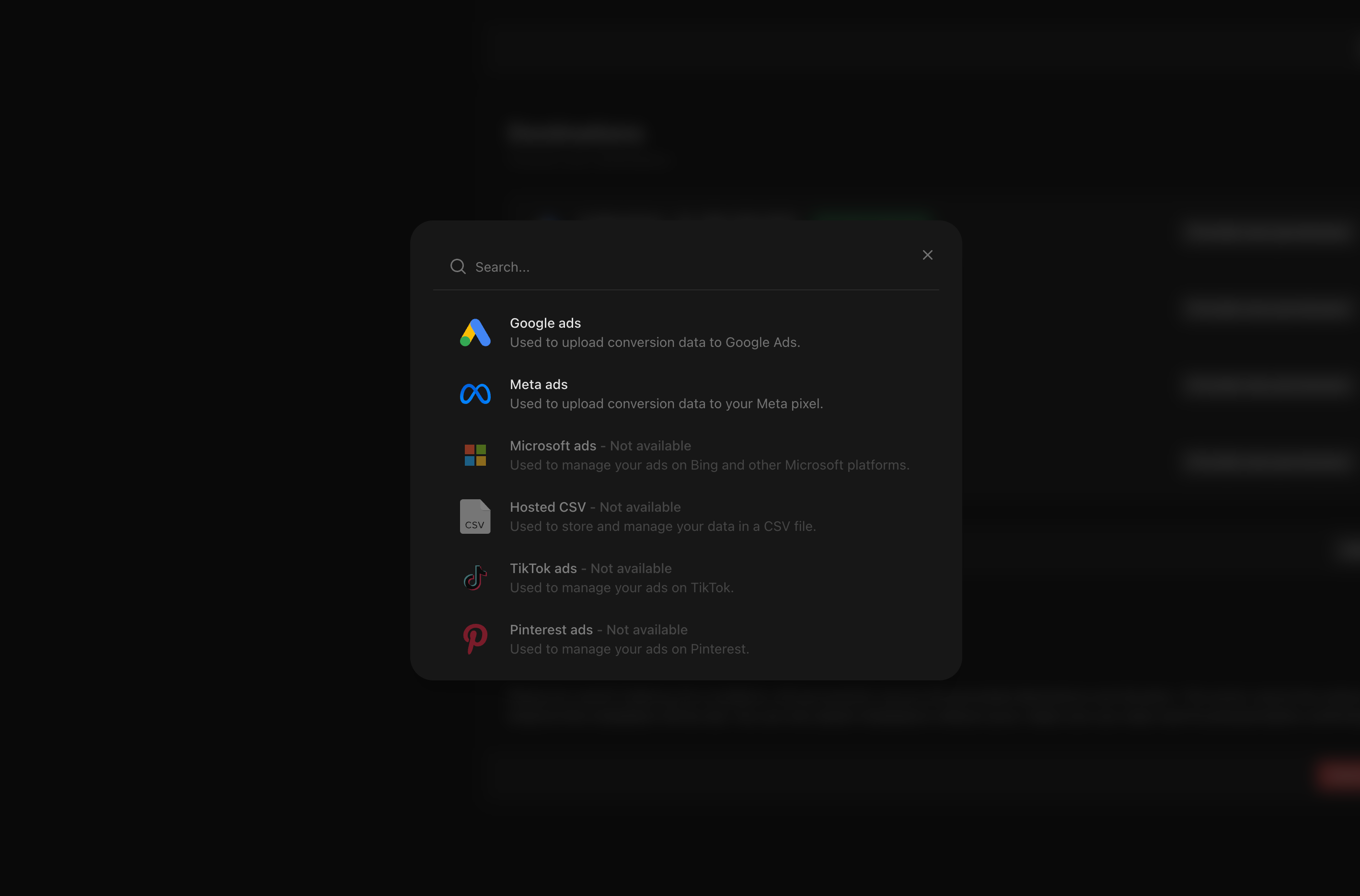
2. Provide the following information:
Meta Pixel name
Choose a name for your pixel. This can match the name you used in Meta, or you can choose a different one. Please note that this name cannot be changed later."
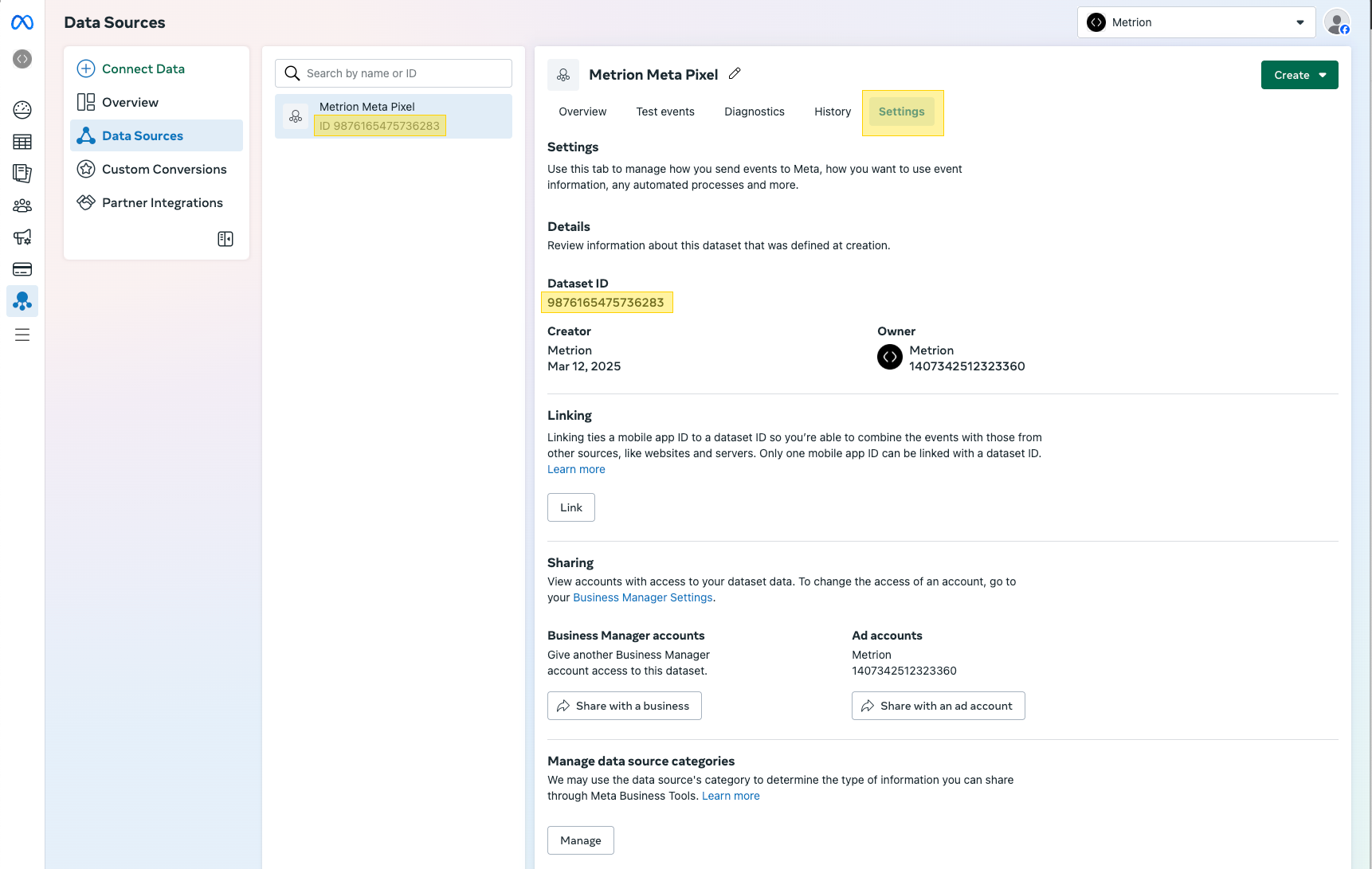
Pixel ID
Go to business.facebook.com and select the right account.
Go to Events Manager > Data Sources
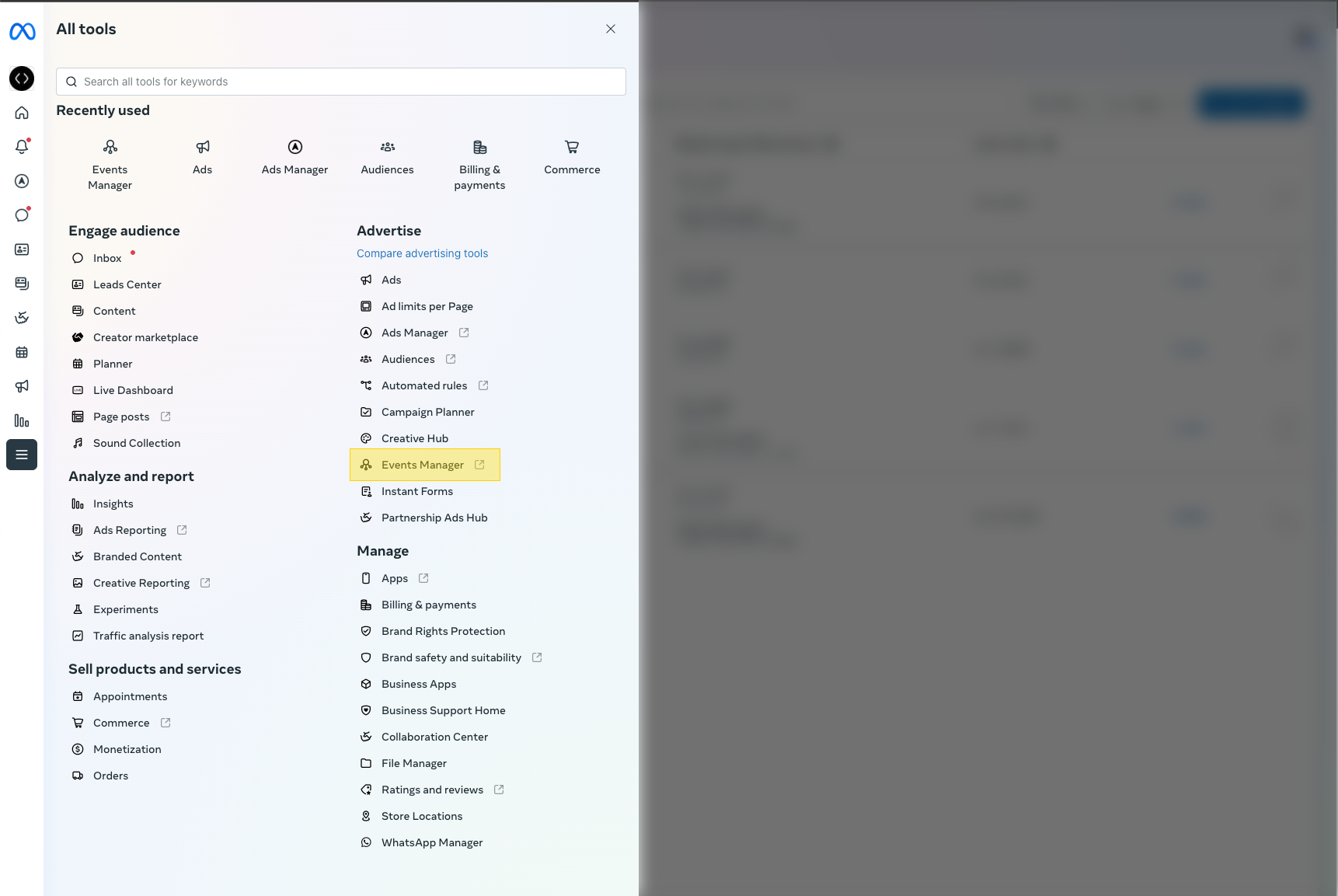
Choose the pixel you want to send data to
Copy the Pixel ID from Settings and paste it to Metrion
Generate Access Token
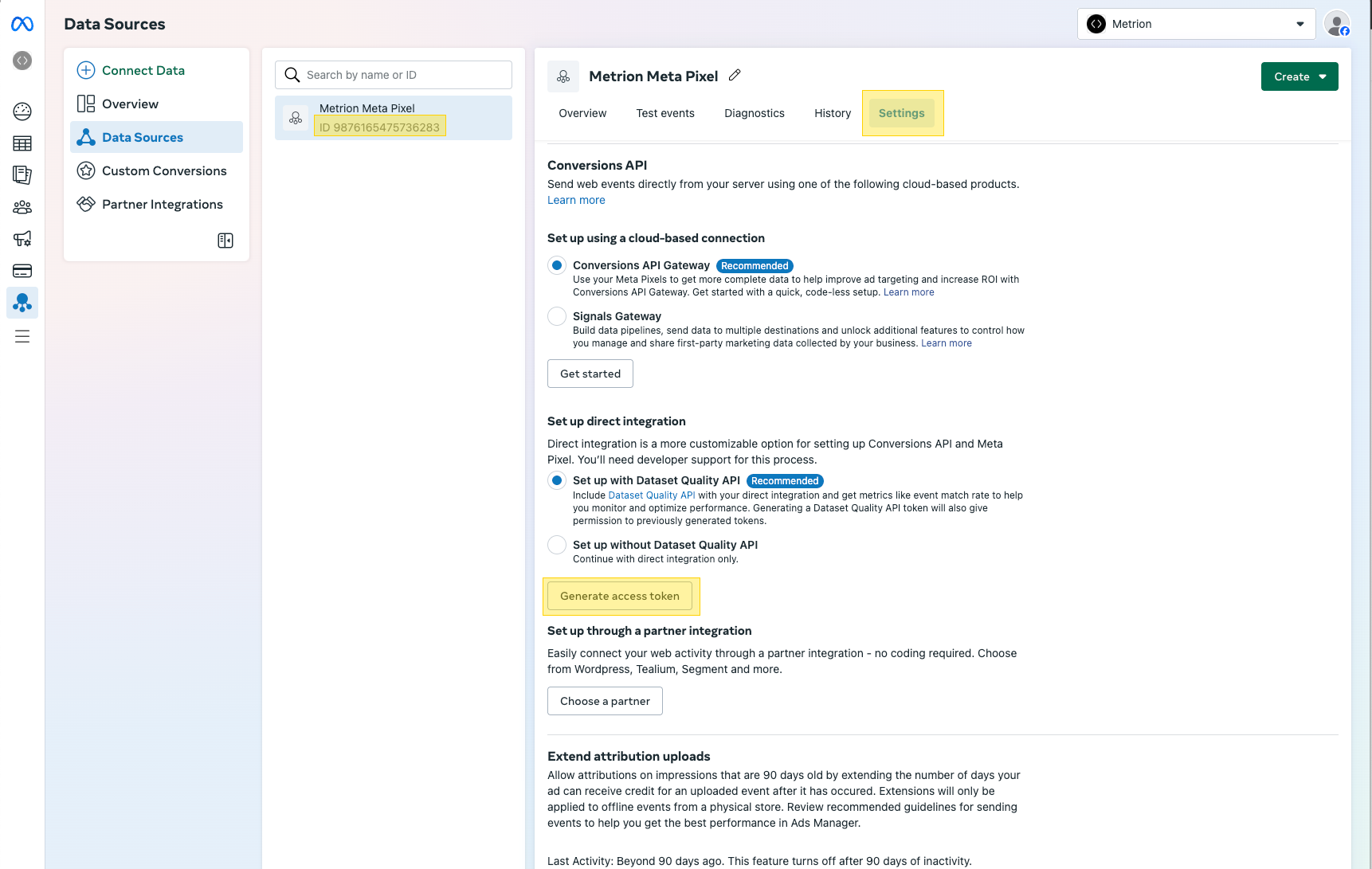
In the same section scroll down to "Conversions API"
Set up direct integration > click on Generate access token
Copy the access token and paste it to Metrion
Was this helpful?
Still need help? Ask the team